

Krira TV is not available on the Google Play Store, so you must install it manually using a process known as “APK sideloading”.
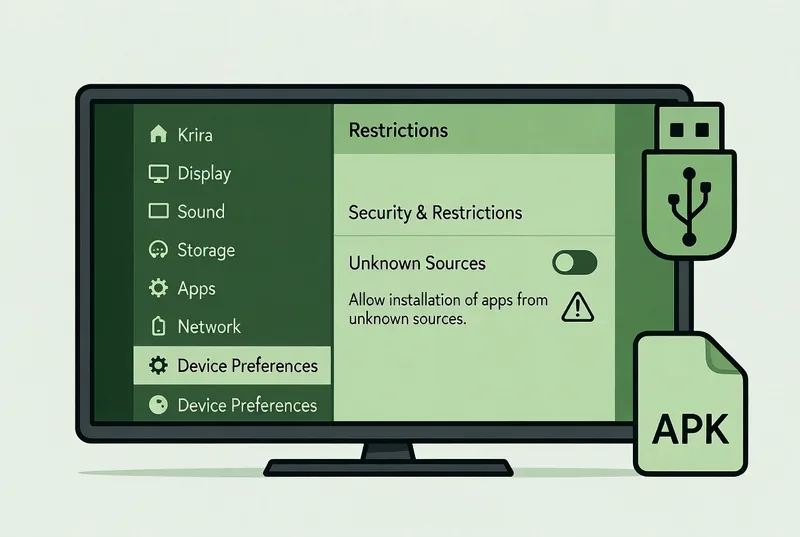
This step-by-step guide shows you the two safest and easiest methods to install Krira TV on any Android Smart TV, including Samsung (Android-based), Sony Bravia, TCL, Hisense, Mi TV, Realme TV, OnePlus TV and others.
Before You Begin make sure you have the following:
- Krira TV APK file
- An Android Smart TV
- A file manager app on your TV (pre-installed or installable)
- A stable Wi-Fi connection
Enable Unknown Sources on Android TV
- Open Settings on your TV.
- Go to Device Preferences or Security & Restrictions.
- Select Unknown Sources.
- Enable permission for your File Manager or Browser.
Method 1: Install Krira TV Using a USB Drive
Prerequisites:
- Krira TV APK file.
- A USB flash drive.
- A file manager app on your Android TV (if not pre-installed).
Steps:
- Download the APK
- Transfer APK to USB Drive
- Copy the APK file to your USB drive.
- Connect USB Drive to TV
- Plug the USB drive into a USB port on your Android TV.
- Open File Manager
- Open your TV’s default File Manager or install one like File Commander, X-plore or FX FIle Manager.
- Install the APK:
- Navigate to the USB drive.
- Select the Krira TV APK file
- Click the file.
- Follow the on-screen instructions to install the app.
Once installed, Krira TV will be available in your Apps menu.
Method 2: Install Krira TV Using a File Transfer App
Prerequisites:
- Krira TV APK File on your smartphone.
- A file transfer app on your smartphone such as
- Send Anywhere
- Xender or
- ShareIt
- Both devices connected to the same Wi-Fi network.
Steps:
- Enable Installation from Unknown Sources
- Install a File Transfer App on TV
- Search for Send Anywhere, Xender, or similar in the TV’s App Store and install it.
- Transfer the APK from Smartphone to TV:
- Open the transfer app on both devices
- Choose Send on your phone
- Select the Krira TV APK file
- Choose your Smart TV as the receiver
- The file will be transferred to the TV’s Downloads folder
- Install the APK:
- Open the file manager app on your TV.
- Navigate to the “Downloads” folder.
- Locate the Krira TV APK
- Click Install
- Follow the on-screen instructions to install the app.
Congratulations!! Now you can watch Krira TV on your Android TV.
Method 3: Install on Amazon Fire TV Stick (Downloader App)
Fire TV Stick and Fire TV Cube don’t have a normal browser or file manager, so the easiest route is Amazon’s free Downloader app:
Type 1437986 into the Downloader app’s URL box and press Go — far easier than a web address on a TV remote. It loads the official v6.3.9 APK (11.2 MB) straight from this site. Prefer typing a URL? Use kriratv.app/tv, which skips the 6-second redirect screen.
- From the Fire TV home screen, search for and install Downloader (orange icon) from the Amazon Appstore.
- Go to Settings → My Fire TV → Developer Options and turn on Install Unknown Apps (older devices: “Apps from Unknown Sources”), then enable it for Downloader. If Developer Options is hidden, go to Settings → My Fire TV → About and click your device name 7 times.
- Open Downloader, select the URL field and enter the code 1437986, then press Go. (Typing kriratv.app/tv does the same thing and skips the 6-second redirect screen — use whichever is easier on your remote.)
- On the download page, click the green Download APK button. The APK (11.2 MB) downloads to your Fire TV.
- When prompted, choose Install, wait for “App installed”, then select Open.
- Optional: let Downloader Delete the APK file afterwards to free up storage.
Fire TV Remote Tips
- Use the ring on the remote to move the on-screen cursor in Downloader’s browser
- Krira TV’s interface works with the D-pad; press Select to open a channel and Play/Pause to control the stream
- If a stream won’t start, back out and try another server link for the same match
The same Downloader method works on any Android TV that has the Downloader app. For all other devices, see the Android guide, PC guide or iPhone guide — and always fetch the APK from the official download page.
Troubleshooting Tips
- If installation fails, ensure Unknown Sources is enabled.
- If APK doesn’t appear, refresh your File Manager or reconnect USB.
- For parsing errors, download the latest APK version.
- Make sure the APK is compatible with Android TV (ARM64).
FAQs
Sideloading refers to installing an app manually via its APK file instead of using the official store (like Google Play Store). It means you download the .apk file and then run it on your Android TV.
Yes. On your Android TV you must enable installation from “unknown sources” for the file manager or transfer app you use. This allows installation of APKs not from the Play Store.
Sideloading has some risks because APKs from unofficial sources may contain malware.
To reduce risk:
1. Only download the APK from a trusted or official source.
2. Double-check you have the correct, unaltered file.
3. Use a trusted file-manager or transfer method.
4. Avoid installing unnecessary extra permissions.
Yes, you can first install a file-manager app (from Play Store or other trusted source) or use a file-transfer app on your phone to send the APK to your TV and then open it from “Downloads” folder.
Some common issues:
– “App not installed”: Maybe the APK is corrupted, incompatible, or you lack storage space. Try
re-downloading, freeing space or ensuring TV-compatibility.
– Installation blocked by security settings: Ensure “install unknown apps” is allowed for your file manager or transfer app.
Usually not. Apps installed via APK (outside Play Store) don’t get auto-updates. You will need to manually download and install newer versions when they are released.
Yes, Android supports sideloading by design but because these apps are outside official stores, the user must explicitly permit “unknown sources”, use responsibly and only trust verified APK sources.
There is a risk since APKs from unofficial sources aren’t verified, some may contain malware or spyware. and Sideloading increases exposure to such risks.
Best practice: Download only from trusted sources, check the file integrity, avoid suspicious apps and review permissions carefully.