

Choose Your Device
Krira TV runs on almost every screen — pick your device for the right guide
Android Phone / TabletTHIS PAGE ↓
Follow the step-by-step guide below on this page.
PC — Windows & Mac
Run Krira TV with an Android emulator: BlueStacks, LDPlayer, Nox or MEmu.
iPhone & iPad (iOS)
Why there is no iOS APK — and the best alternatives for Apple devices.
Android TV & Fire TV Stick
USB, file-transfer and Downloader-app methods for the big screen.
v6.3.9 · 11.2 MB · always download from the official page
Krira TV is not available on the Google Play Store due to Google’s Policy. So, you need to download its APK file and install it manually.
Don’t worry about its safety, Krira TV APK is 100% SAFE, with its security verified by CM Security, Lookout, and McAfee. You can download the APK file from our website.
Downloading and Installing the Krira TV app is easy. You just have to follow the step-by-step guide to download and install the app. Here we go.
Choose your phone
Android hides the “unknown sources” setting in a different place on every brand. Tap yours for the exact path — the rest of the guide is the same for everyone.
SamsungOne UI
- Open Settings
- Tap Apps
- Tap the ⋮ menu (top right) → Special access
- Tap Install unknown apps
- Pick Chrome or Samsung Internet — whichever you downloaded with
- Turn on Allow from this source
Xiaomi · Redmi · POCOMIUI / HyperOS
- Open Settings → Privacy protection
- Tap Special permissions
- Tap Install unknown apps
- Pick your browser and turn on Allow from this source
Realmerealme UI
- Open Settings → Password & Security
- Tap System Security → Install unknown apps
- Pick your browser and turn on Allow from this source
OPPOColorOS
- Open Settings → Password & Security
- Tap System Security → Install unknown apps
- Pick your browser and turn on Allow from this source
vivoFuntouch OS / OriginOS
- Open Settings → More Settings
- Tap Permission management → Install unknown apps
- Pick your browser and allow it
InfinixXOS
- Open Settings → Apps & notifications (or Apps)
- Tap Special app access → Install unknown apps
- Pick your browser and turn on Allow from this source
TecnoHiOS
- Open Settings → Apps
- Tap Special app access → Install unknown apps
- Pick your browser and turn on Allow from this source
itelitel OS
- Open Settings → Apps
- Tap Special app access → Install unknown apps
- Pick your browser and allow it
Symphony · Waltonnear-stock Android
- Open Settings → Apps
- Tap Special app access → Install unknown apps
- Pick your browser and turn on Allow from this source
On older models the setting is Settings → Security → Unknown sources, a single switch.
HonorMagicOS
- Open Settings → Security
- Tap More settings → Install apps from external sources
- Pick your browser and allow it
HuaweiEMUI
- Open Settings → Security
- Tap More settings → Install apps from external sources
- Pick your browser and allow it
MotorolaMy UX
- Open Settings → Apps
- Tap Special app access → Install unknown apps
- Pick your browser and turn on Allow from this source
OnePlusOxygenOS
- Open Settings → Apps
- Tap Special app access → Install unknown apps
- Pick your browser and allow it
Google Pixel · Nokiastock Android
- Open Settings → Apps
- Tap Special app access → Install unknown apps
- Pick your browser and turn on Allow from this source
Step 1. Downloaded the APK
- Download the APK file from our website: https://kriratv.app
- Click on the download button to get the latest APK version.
Important Note: You may receive a warning message from Google when installing Krira TV. You can safely ignore this warning and continue with the installation by clicking on “Download anyway“.
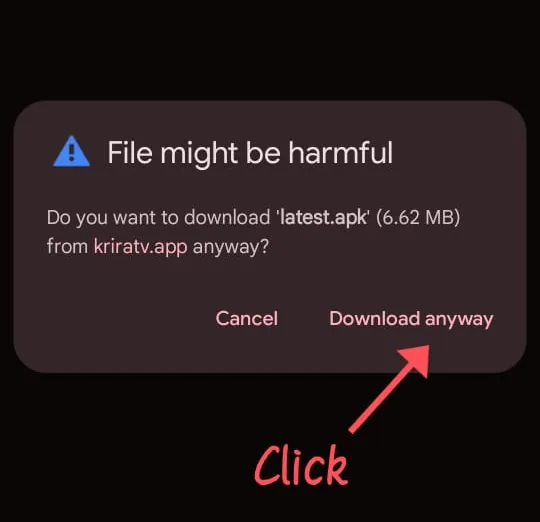
After clicking your download will start and in no time it will be downloaded.
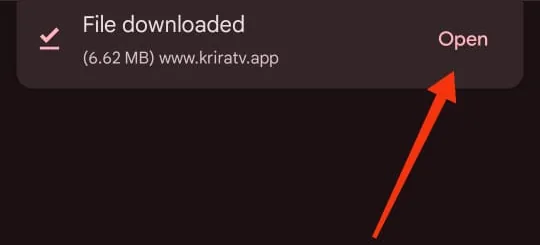
Once you have downloaded the APK file, launch it.
Step 2: Enable Unknown Sources
2.1: From Web Browser
Click the downloaded file to start the installation process. If you are using Chrome Browser a message will come that your Chrome Browser isn’t currently allowed to install unknown apps.
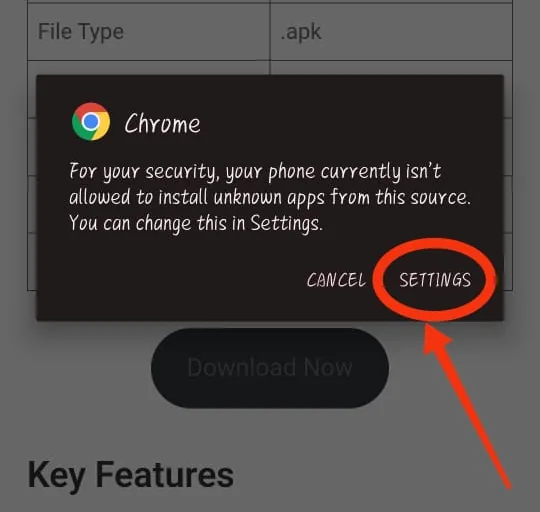
Click on the “SETTINGS” button to change it.
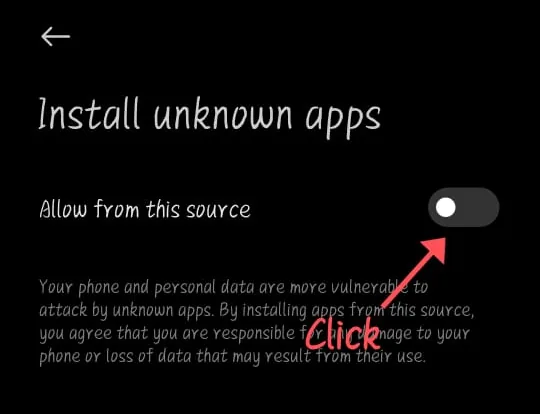
Enable ‘Allow from this source‘, then a Warning Message will appear to protect you from malware apps. No worries! Krira Tv app is not one of them.
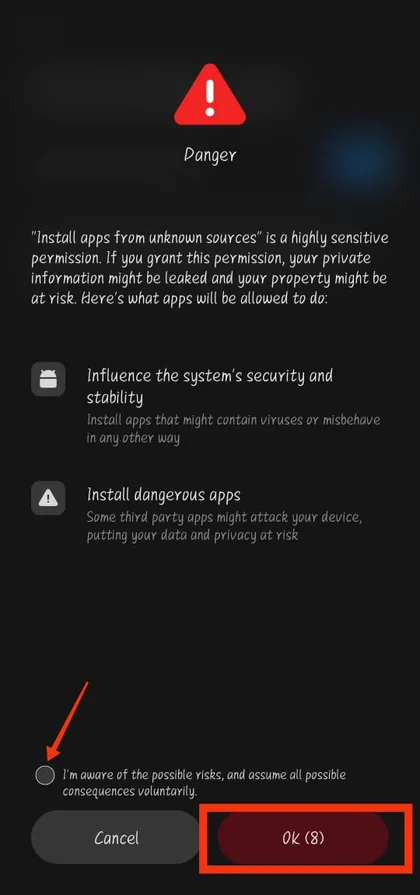
Click the I’m aware of the possible risks. You may have to wait 10 seconds before enabling it.
2.2: Manually From “Settings”
If the options to enable “Settings” doesn’t come automatically you can manually enable it from your device’s “Settings” and turn on “Unknown Sources” to allow the installation of apps from sources other than the Google Play Store.
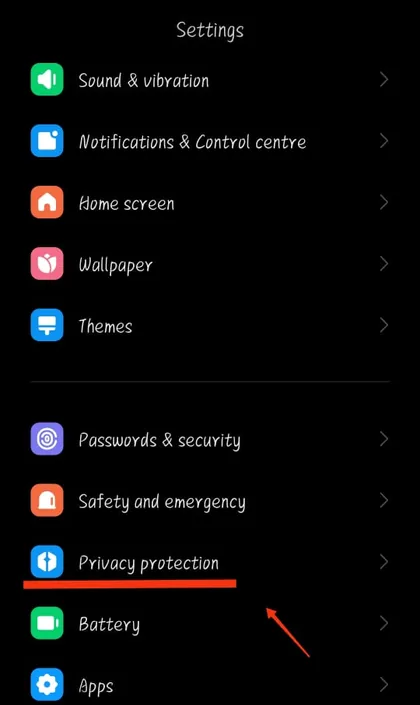
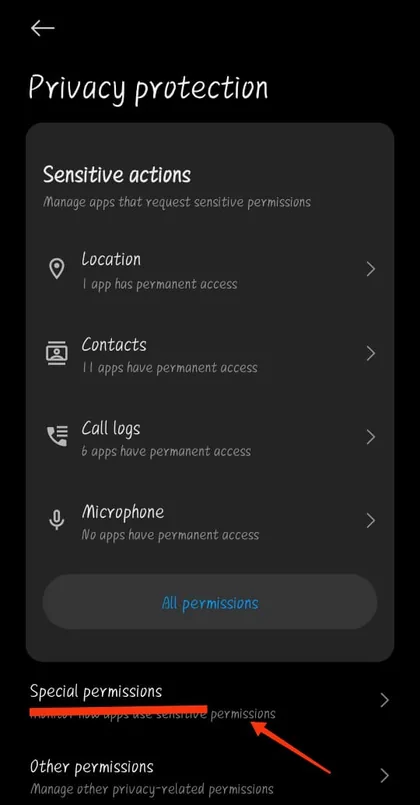
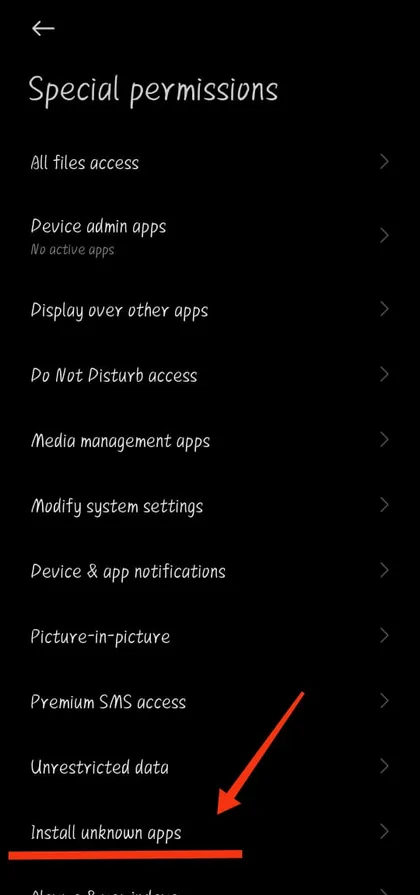
Open your ‘Settings’, scroll down and look for “Privacy Protection”. Click on that, then you will see “Install Unknown Apps”.
or
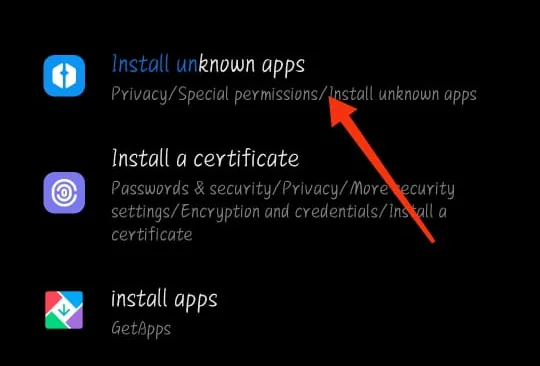
Open your ‘Settings’ and directly search for “Install Unknown Apps”, then click it.
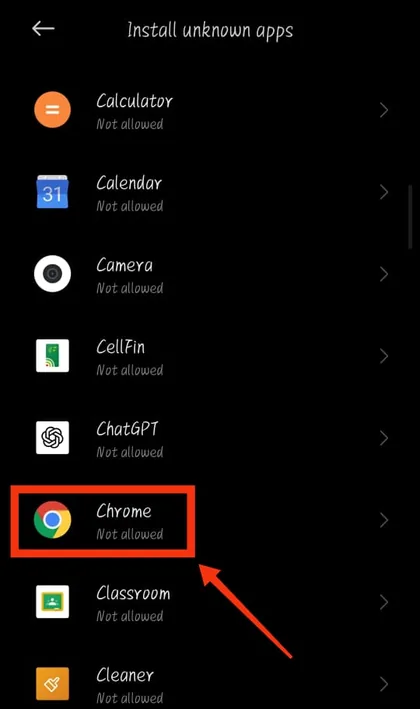
Search for the browser from where you installed the app, click on it, enable “Allow from this source” and click ok on the “Danger” warning.
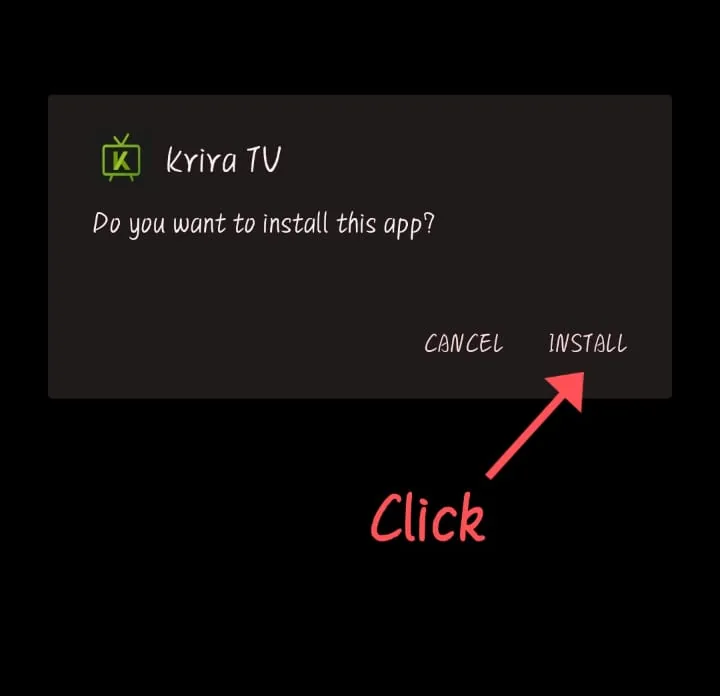
Congratulations!!! “Krira Tv” app has been installed on your device.
Step 3: Launch Krira TV
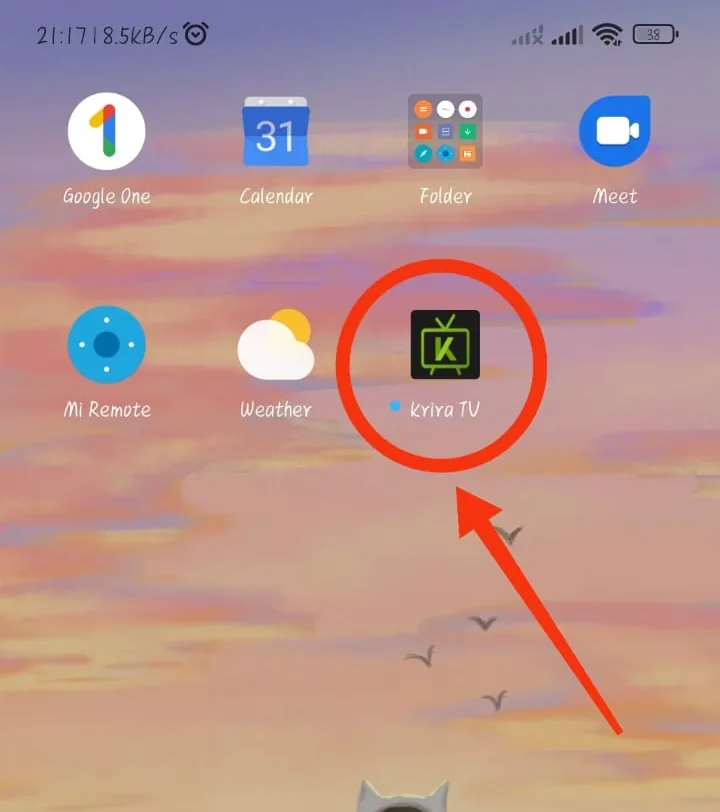
After completing the installation, open Krira TV app by tapping on its icon on your device’s home screen.
Enjoy the live stream sports matches for free!